

A Windows on ARM laptop can be a convenient way to reach programs and files on your home or office PC while you are away. AirDesk connects to a computer you already have; it does not provide a cloud PC. Prepare the remote computer before you leave.
Know which device does what
The host is the remote computer that provides the screen and runs your programs. The connecting device is the laptop or other device you use to view and control it. Check the appropriate installer and setup for each device, whether the ARM PC is the host or the connecting device.
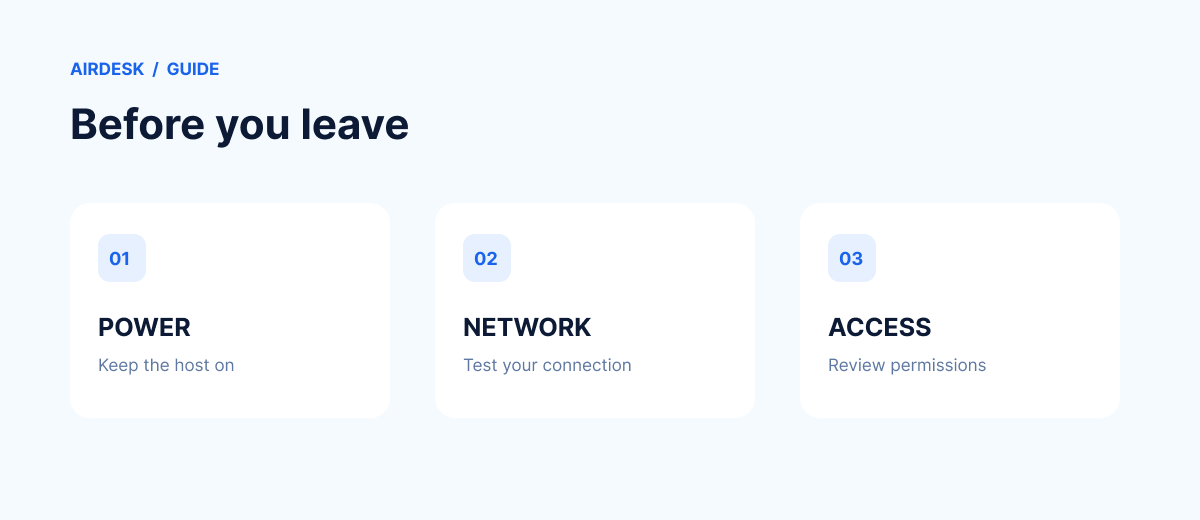
Five checks before you leave
1. System type and installer
On the ARM laptop, open Settings → System → About and check System type. Select Windows ARM64 on the download page, and install the appropriate app on the other device too.
2. Host power and sleep
A powered-off or sleeping host may be unavailable. Keep it powered on and online, and follow your organization's power and security policies for a company PC.
3. Account and sharing permissions
For your own PC, sign in to both apps with the same account and enable sharing on the host. For someone else's PC, the owner must approve sharing and the necessary input permissions. Use individual access permissions rather than sharing passwords.
Example.
4. Test the actual network
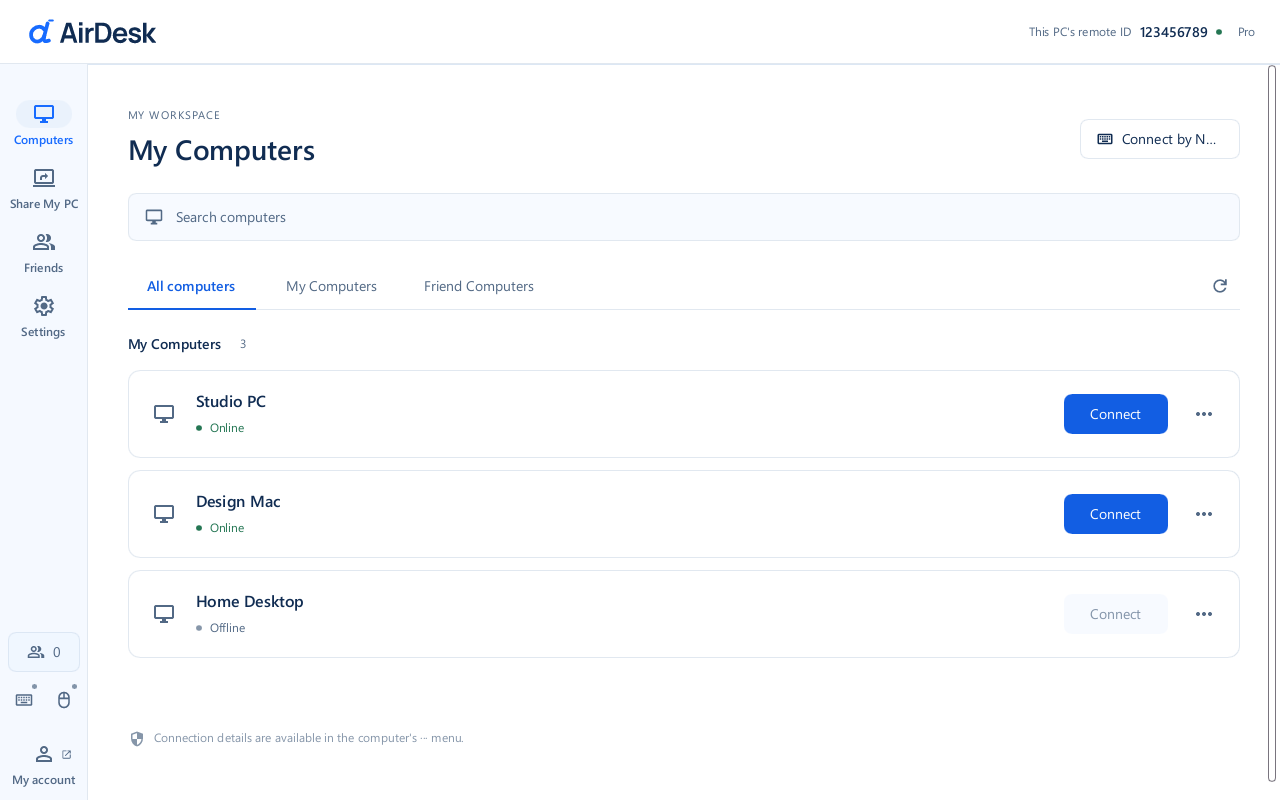
Check that the host appears online and connect before leaving. If possible, also test the Wi-Fi or mobile network you intend to use. Free, Pro and Teams use direct P2P connections, which can be restricted by firewalls, double NAT or company policy.
5. Check screen and input
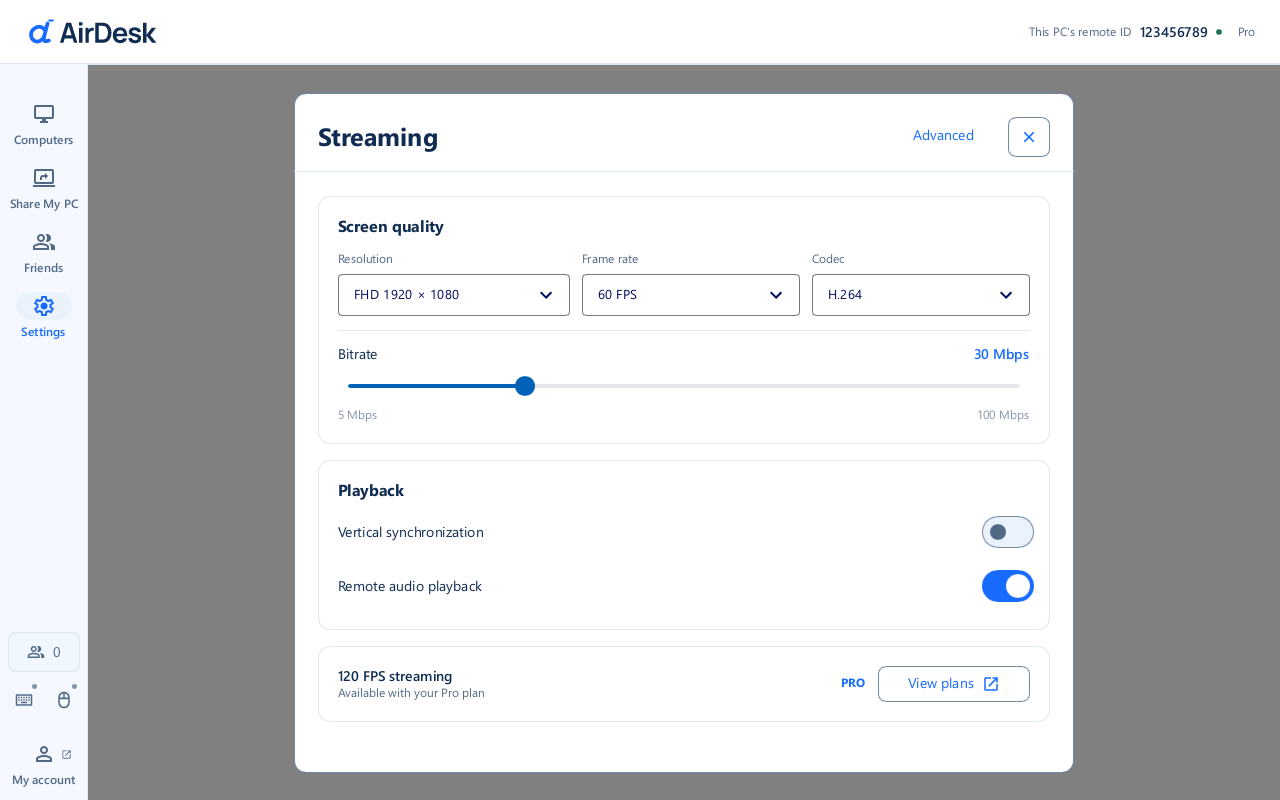
Open a document and check that the screen updates and keyboard and mouse input work. Test audio or multiple monitors if you need them. Responsiveness and picture quality depend on devices, settings and network conditions.
Example.
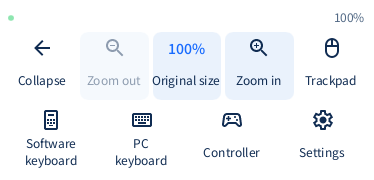
For a mobile connecting device, the toolbar example below illustrates the mobile interface. Controls can vary by device and app version.
Example.
Common questions
Can I connect while the host is powered off?
A normal remote connection requires the host to be powered on and connected to the network.
Which installer should I choose for an ARM laptop?
Check the Windows system type and select the Windows ARM64 AirDesk installer. Compatibility of other apps depends on the app and environment.
The screen appears, but the mouse does not move. What should I check?
Review host input permissions and running security software. See mouse input troubleshooting.
For installation details, see the Windows ARM64 guide. AirDesk Free is for personal use and allows up to five registered computers.