


When a Microsoft 365 outage disrupts Outlook or Teams, locally available documents can give you a way to continue part of your work. If Word or Excel is installed and working on your office PC, AirDesk lets you connect remotely and use files stored on that computer.
The Microsoft service disruption that began on November 12, 2026 affected services including Outlook and Teams. Microsoft said services were restored on November 14, according to AP's coverage.
Use locally installed Office during a Microsoft 365 outage
If a Word document or Excel workbook is stored locally on your office PC and the installed Office application opens successfully, you can connect to that PC with AirDesk and edit the file using its screen, keyboard, and mouse.
For example, a traveler who needs to update a quote stored on an online office PC can connect and open it in the installed Excel application. Save your changes in a local folder permitted by your organization's policy, then review and sync the updated file when the cloud service is available again.
Prepare your remote desktop connection
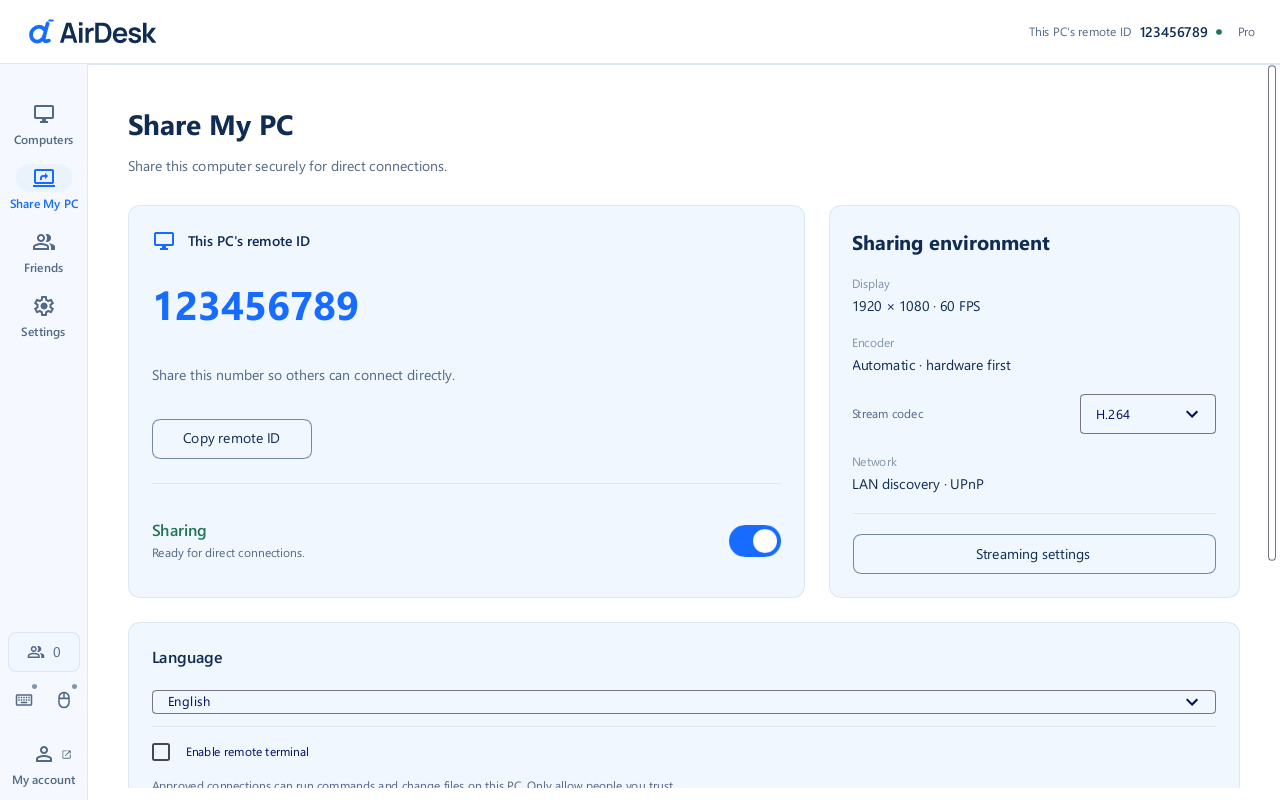
An example of the AirDesk settings screen.
- Install AirDesk on your office PC and the device you will use to connect.
- Sign in on the office PC and enable Share My PC. Keep the computer powered on and connected to the network, and configure the required access permissions.
- Sign in on your connecting device and select the office PC from the computer list.
- Open the file from its local folder and edit it in Word or Excel. Test the connection and file access before an outage whenever possible.
Conditions to check
- Office must be installed on the remote PC and properly licensed for the user. Locally installed Microsoft 365 apps can still depend on activation and sign-in status. See Microsoft's licensing guidance.
- Make necessary OneDrive or SharePoint files available locally ahead of time. A cloud-only file may be unavailable to download during a disruption.
- Both devices need network connectivity, and the AirDesk services required for the connection must be available.
- Outlook mail, Teams meetings, and cloud coauthoring depend on their respective services. Check for duplicate versions and sync conflicts after service is restored.
Reviewing essential files and installed applications in advance helps your team identify which work can continue on a remote PC during a cloud service disruption.