

Many people use a Mac at home and a Windows PC at work. Remote access can help you continue in the environment where your work is already set up, whether you need a Windows-only app or a file on another computer.
Access your Windows workspace from a Mac
Remote access lets you view another computer’s screen and, when permitted, use its mouse and keyboard. For a company computer, check your organization’s remote-work and security policies and obtain any required approval first. AirDesk Free and Pro are personal-use plans; organizations should review Teams or Enterprise.
Before you connect
- Leave the Windows PC powered on and check its sleep settings.
- Install the appropriate AirDesk version on the Mac and Windows PC, then sign in.
- Confirm access and input permissions for the remote computer.
- Test the connection, screen, mouse and keyboard before leaving.
See the installation and connection guide for current device requirements.
Using dual monitors remotely
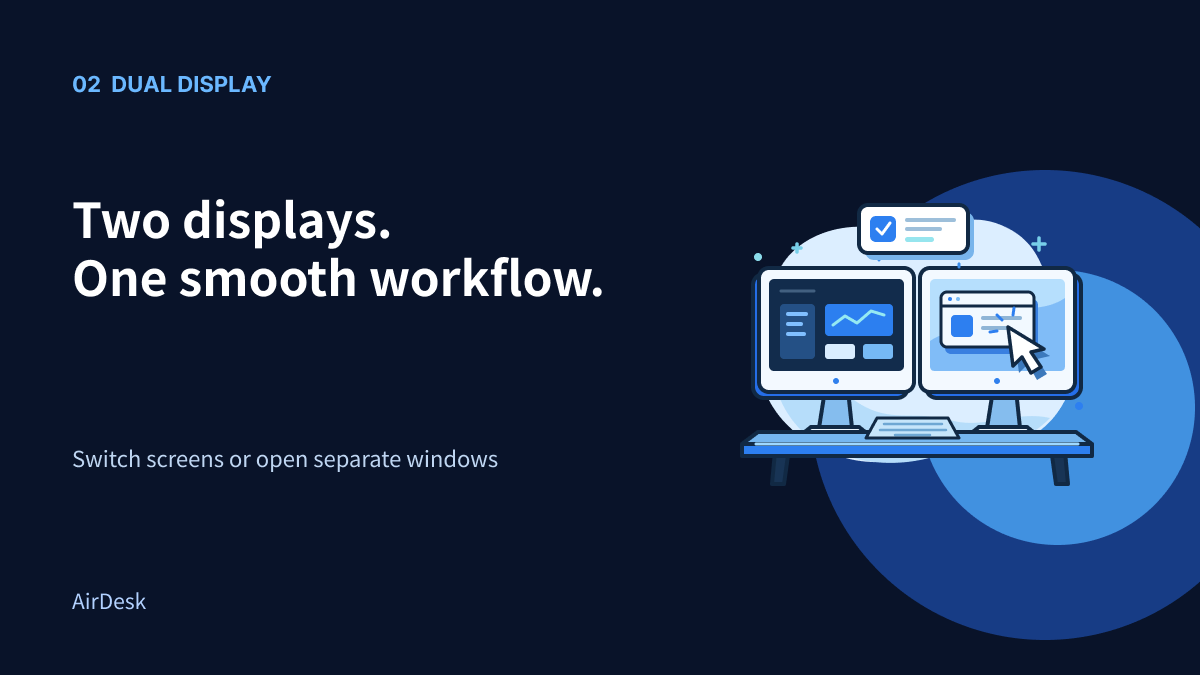
AirDesk lets you switch between remote displays or open them in separate windows. You could keep a document on one screen and reference material on the other. With one local monitor, switch between remote screens; with two, arrange the windows side by side.
What about virtual displays?
AirDesk offers virtual displays on supported hosts. Check the operating system, driver, app version and plan requirements before relying on them. For creative work, pen position and pressure input are also available on compatible Windows hosts, subject to device and feature support.
Test power, networking, sign-in and display settings in advance so your remote workspace is ready when you need it.